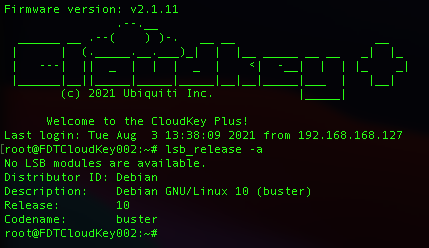
A while back I wrote about converting a UniFi Cloud Key Gen2/Gen2 Plus into a real, de-Ubiquitized Debian server — stripping out the UniFi app layer and getting a genuinely useful little ARM box out of hardware that’d otherwise just sit there running a network controller. That article walked through the manual process. This one’s about the tool I built afterward so I (and anyone else who wants to) never have to do it by hand again.
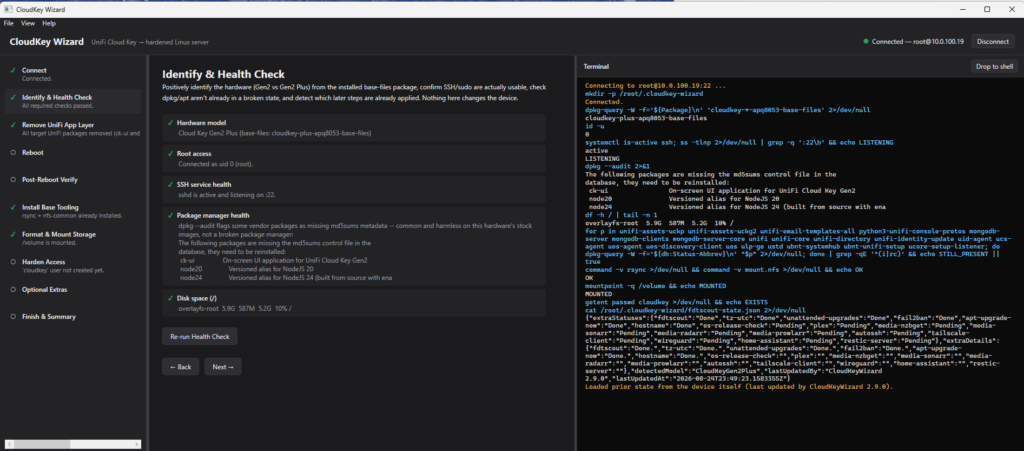
CloudKey Wizard is a free Windows app that automates the whole conversion, plus a growing pile of optional stuff to actually turn the box into something useful once it’s converted.
What it actually does
At its core, CloudKey Wizard drives the conversion over SSH, one step at a time:
- Connects to the Cloud Key and identifies exactly which model it is (Gen2 vs. Gen2 Plus) rather than trusting a guess
- Health-checks it first — confirms SSH, root access, and package-manager health before anything destructive happens
- Removes the UniFi application layer — MongoDB, the UniFi controller, the various UBNT agents — in verified batches, checking the box is still reachable after each one
- Reboots and reconnects automatically, then verifies the result
- Installs base tooling (curl, git, tmux, the usual) so you’ve got a real general-purpose Linux box, not a bare stripped shell
- Formats and mounts extra storage, if your model has it, with a live device picker so you’re never typing a raw device path from memory
- Locks down access — key-only SSH, no password login — as an explicit, explained, skippable step
Every single command it runs streams live into a terminal pane in the app, in real time. Nothing happens off-screen, and anything genuinely dangerous (wiping a drive, purging the UniFi stack, locking passwords) requires you to type an exact confirmation phrase before it’ll run. I built this specifically because the first time I did this by hand, I did not want to repeat that process, and I really didn’t want a “helpful” tool that just ran a black-box script and hoped for the best.
It doesn’t stop at “clean Debian box”
Once the conversion’s done, there’s an Optional Extras step — a menu of independent, one-click things you can add:
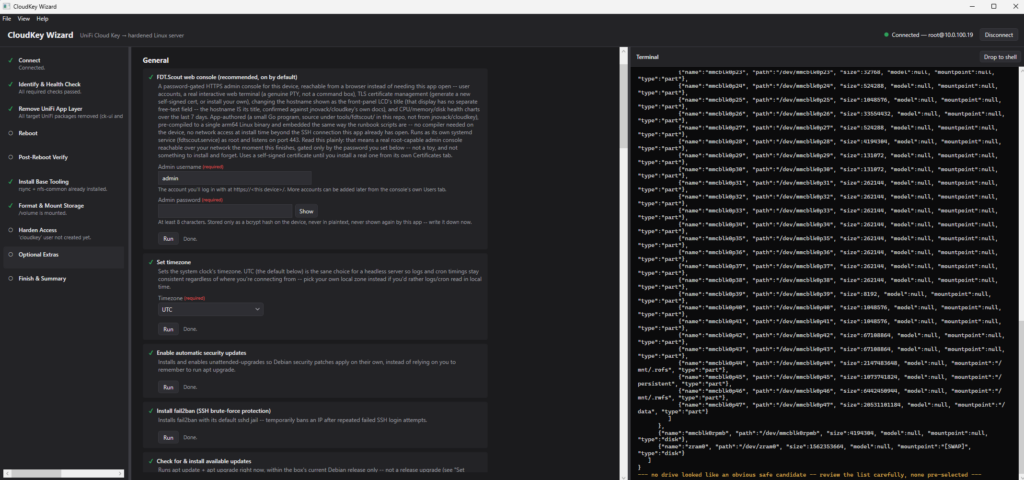
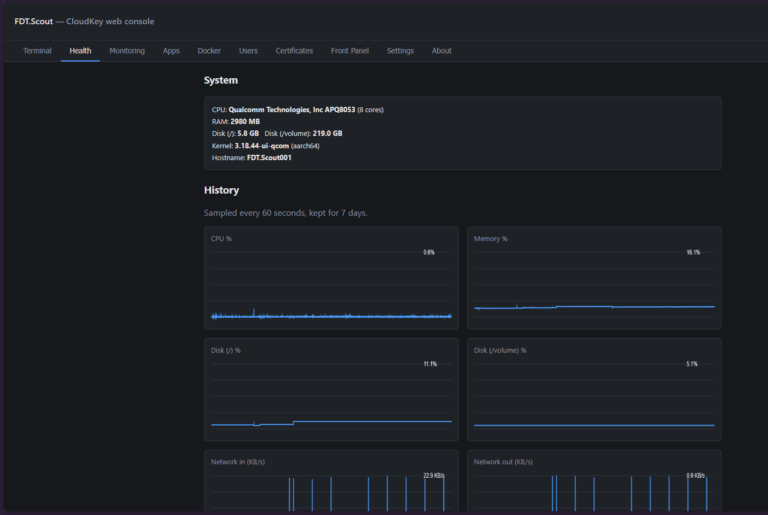
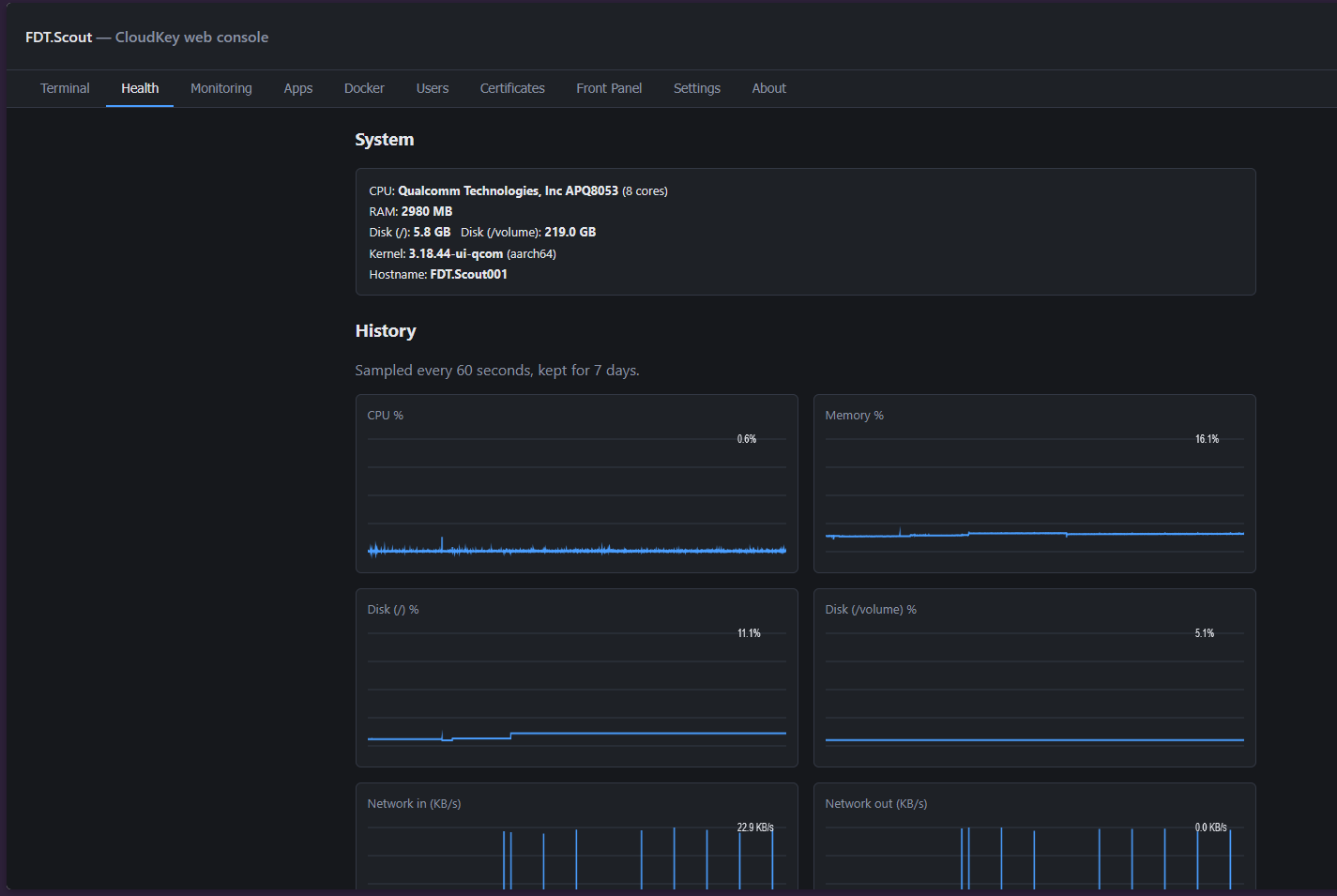
- FDT.Scout — a password-gated web console I built for managing the box afterward: a real browser-based terminal, health/monitoring dashboards, log aggregation, a front-panel display driver, and (as of the latest version) a full Docker container manager
- Plex, for the obvious reason
- The full Servarr stack — Sonarr, Radarr, Prowlarr, NZBGet — if you want the box doing media automation
- Home Assistant, via Docker
- Tailscale or a WireGuard fail-closed egress tunnel (traffic literally can’t leak out if the tunnel drops) for remote access
- A Restic backup server, so the box can be a real, encrypted backup destination for your other machines
- The small quality-of-life stuff too — fail2ban, unattended upgrades, timezone, hostname
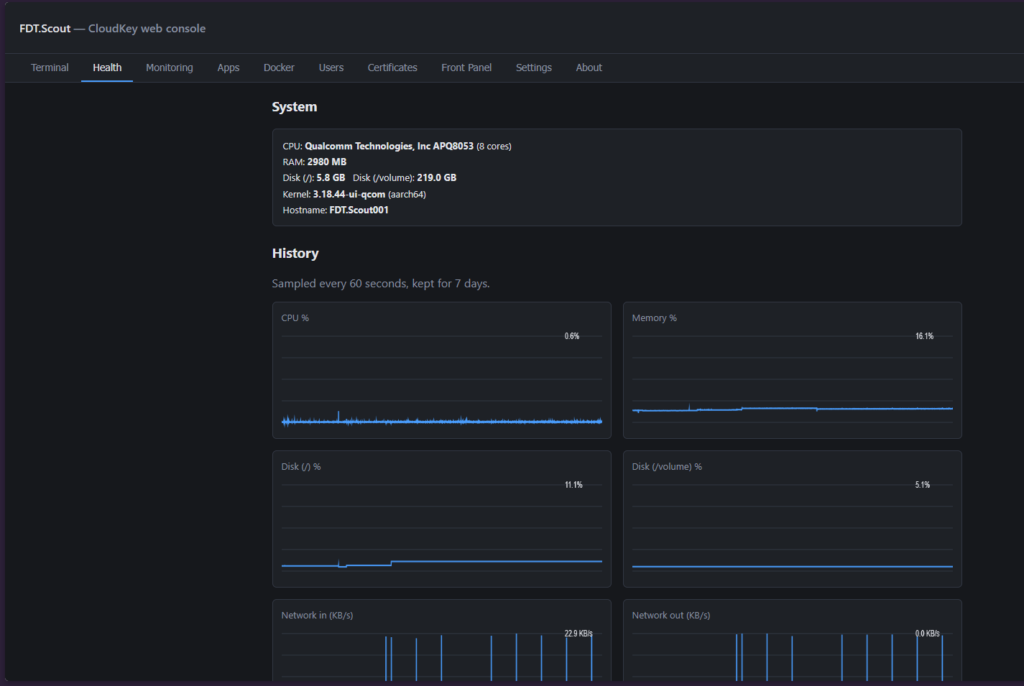
Every one of these is optional and runs independently — you’re not committing to a media server just because you wanted the VPN egress tunnel.
Where the credit actually goes
The conversion process itself — the actual “here’s how to strip UniFi off this hardware safely” research — isn’t mine. That’s jnovack/cloudkey‘s work, and CloudKey Wizard bundles a number of their own scripts verbatim (pinned to a specific commit, hash-checked before anything runs) to automate what used to be a manual runbook. Full credit lives in the app’s own About screen, along with the actual license those files carry.
Free, and actually free
This isn’t a freemium thing or a lead-gen tool — it’s a personal project, given away because I wanted it to exist and figured other people converting the same hardware would want it too. No account, no paywall, no catch.
Download CloudKey Wizard — single .exe, nothing to install. Source is up on GitHub if you want to see exactly what it does before you run it against your own hardware, which, frankly, you should.
About the Author