Exploring Ungoogled-Chromium: A Privacy-Focused Browser Alternative
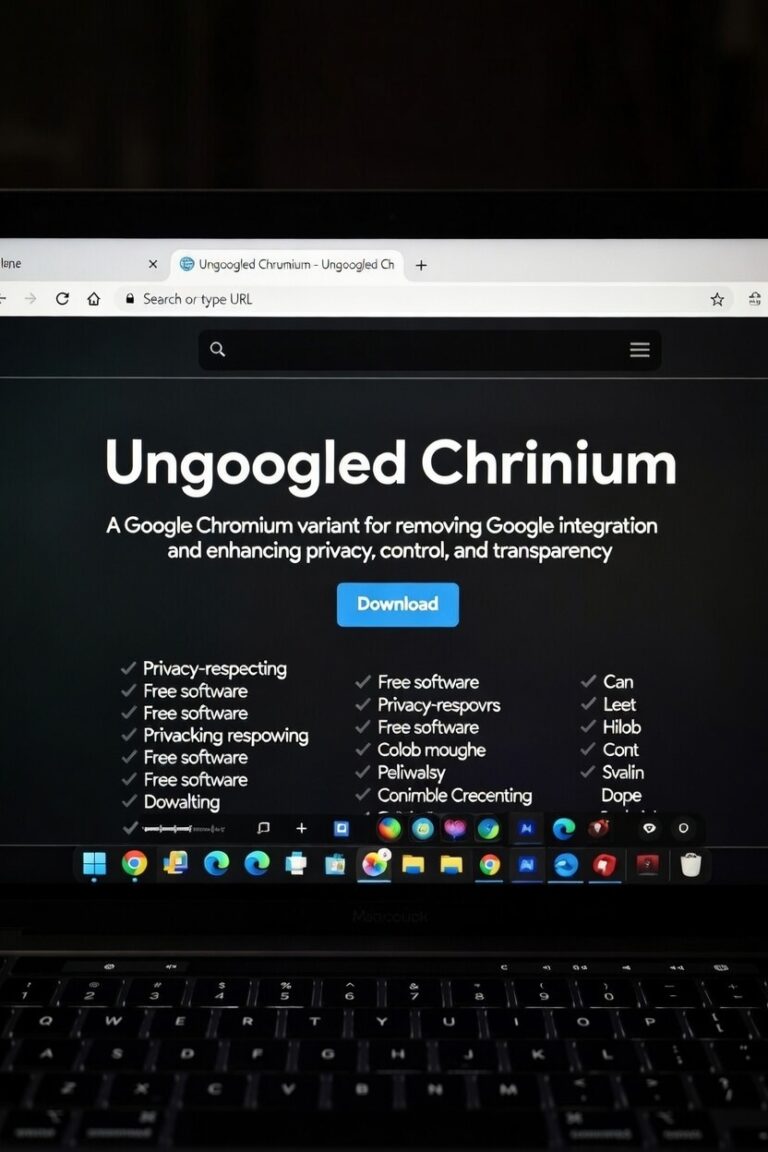
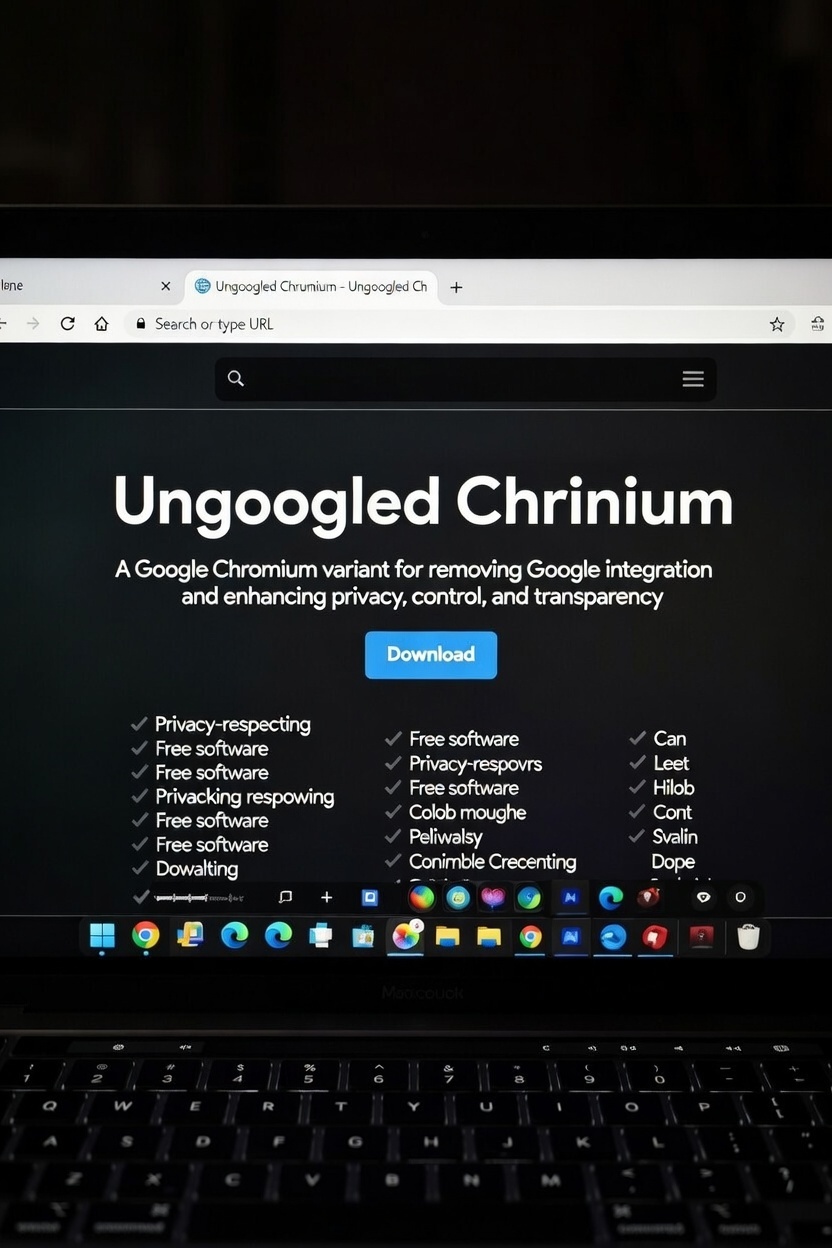
Today, privacy concerns are more significant than ever, particularly regarding web browsers. Google Chrome is popular for its speed and features, but it is built on the open-source Chromium project. It comes packed with Google services that track user data. This is where Ungoogled-Chromium comes in. It is a modified version of Chromium that removes Google dependencies to focus on privacy, control, and transparency. This blog post will explain what Ungoogled-Chromium is, its benefits, pros and cons, and step-by-step installation guides for Linux Mint and Windows. We will use information from the official GitHub repository.
What is Ungoogled-Chromium?
Ungoogled-Chromium is essentially Chromium without the Google elements. It removes all connections to Google web services, such as location tracking, Safe Browsing, and background requests to Google servers. It attempts to maintain the browsing experience as close to vanilla Chromium as possible. The project, hosted on GitHub at ungoogled-software/ungoogled-chromium, focuses on three main goals: removing Google service dependencies, preserving the default Chromium feel, and adding optional privacy features that users can choose to enable.
Key features include disabling Google-specific functions like URL tracking and cloud messaging, blocking requests to Google domains in real-time, and removing unnecessary files from the source code. It also includes improvements from other privacy-focused projects like Bromite and Iridium, such as forcing pop-ups into tabs and disabling automatic URL formatting in the Omnibox. As a drop-in replacement, it supports Chrome extensions and performs just as quickly, making it appealing for users who want Chromium’s abilities without compromising privacy.
Benefits of Using Ungoogled-Chromium
The main benefit is improved privacy. By removing Google web service integrations, it stops “phoning home” to Google servers, which even standard Chromium does to some extent. This means fewer background requests for location services or Safe Browsing checks, significantly reducing data leakage. Users also gain more control over their browsing experience, as privacy features are optional, allowing for customization without overwhelming defaults.
In terms of performance, it retains Chromium’s efficiency and often feels faster and more responsive than alternatives like Firefox forks, especially on systems like Linux. It is also compatible with different operating systems, including Linux, Windows, macOS, and even Android, although the latter may receive less maintenance. For users concerned about privacy, especially in tech-savvy communities like hackers or developers, it is a reliable option that balances security with usability.
Pros and Cons
Like any software, Ungoogled-Chromium has its advantages and disadvantages. Here’s a balanced view:
Pros
– Enhanced Privacy: The lack of Google tracking, fewer data leaks, and runtime blocking of Google domains make it a strong choice for privacy advocates.
– Performance Parity: It matches Chromium’s speed and supports hardware acceleration, usually outperforming slower browsers like Firefox on demanding tasks.
– Extension Compatibility: Users have full access to the Chrome Web Store and extensions without needing a Google account.
– Transparency and Control: Being open-source with configurable features gives users more control.
– Cross-Platform Availability: Installing it across different operating systems is easy, with community-maintained packages.
Cons
– Reduced Security Features: Disabling Safe Browsing means less automatic protection against harmful sites, making users more responsible for their safety.
– Potential Functionality Breaks: Features like intranet redirect detection are disabled, which might impact captive portals or other specific scenarios.
– Not Beginner-Friendly: The user experience might require some tweaks for optimal functionality, and it may not feel as polished as mainstream browsers.
– Third-Party Binaries: Pre-built versions, especially for Windows, come from contributors rather than official sources, raising potential authenticity concerns.
– Middle-Ground Positioning: It leaks less data than Chrome but may not be as private as alternatives like Tor Browser, landing in a tricky spot for some users.
Overall, it is a good choice if you want the Chromium ecosystem with better privacy, but it may not be the best fit for those who need maximum security with minimal effort.
Installation Guide: Linux Mint Perspective
Installing Ungoogled-Chromium on Linux Mint, which is based on Ubuntu, is straightforward. You can use PPAs, Flatpaks, or DEB packages. Here’s how to do it using the recommended methods from the official GitHub repository.
Method 1: Using XtraDeb PPA (Recommended for Ubuntu/Debian-Based Distros)
1. Open a terminal.
2. Add the PPA: sudo add-apt-repository ppa:xtradeb/apps
3. Update your package list: sudo apt update
4. Install the browser: sudo apt install ungoogled-chromium
5. Launch it from the menu or by typing ungoogled-chromium in the terminal.
This method allows for automatic updates and integrates well with your system.
Method 2: Flatpak (Distro-Independent)
1. If Flatpak is not installed, set it up: sudo apt install flatpak
2. Add the Flathub repository: flatpak remote-add –if-not-exists flathub https://flathub.org/repo/flathub.flatpakrepo
3. Install it: flatpak install flathub io.github.ungoogled_software.ungoogled_chromium
4. Run it: flatpak run io.github.ungoogled_software.ungoogled_chromium
Flatpak is excellent for sandboxing and works across different Linux distributions, including Mint.
Once installed, you can import settings from other browsers or start fresh. On Mint, it integrates well with Cinnamon or other desktop environments, providing a smooth experience without Google bloat.
Installation Guide: Windows Perspective
For Windows users, the installation is simpler but depends on third-party binaries from the project’s binaries page. Always download from trusted sources to minimize risks.
1. Visit the Ungoogled-Chromium binaries page: https://ungoogled-software.github.io/ungoogled-chromium-binaries/
2. Scroll to the Windows section and download the latest installer, such as a .exe file for Windows 10/11.
3. Run the installer as an administrator.
4. Follow the on-screen prompts to complete the setup.
5. Launch from the Start menu or desktop shortcut.
Or via powershell you can “One Line” it : winget install –id=eloston.ungoogled-chromium -e
After installation, you might want to configure extensions via the Chrome Web Store, which you can access without a Google account, and adjust privacy settings like enabling “Force pop-ups into tabs.” On Windows, it performs excellently, matching Chrome’s speed without the tracking.
Final Thoughts
Ungoogled-Chromium offers a strong balance for users wanting privacy without losing the power of the Chromium engine. From Linux Mint’s easy PPA integration to Windows’ straightforward installer, it’s accessible on various platforms. If you are tired of Google’s data collection but still love the Chrome experience, give it a try, keeping in mind that some configurations may be necessary. For the latest updates, check the official GitHub repo. Whether you’re using Mint for its user-friendly experience or Windows for daily tasks, this browser could be your next step toward improved privacy.
About the Author